AI for LinkedIn outreach that books calls on your calendar
How AI for LinkedIn outreach can answer every reply in your voice, offer times you are free and book the call itself, and what to check first.
NurtureLead is our product. Every other tool's prices and features here come from its own pages, checked on 5 October 2026.
Ask anyone who runs LinkedIn outreach where the hours go, and the answer is rarely the first message. Sequences take an afternoon to set up. The real work starts when people reply: a question about price, a "sounds interesting, what does it involve?", a "could we talk next week?". Each one needs a good answer, quickly, before the interest cools.
That is the job AI for LinkedIn outreach should be judged on. Writing a clever opening line is useful, but it is the easy part. This guide explains what reply AI should do, how NurtureLead's AI does it, how it books calls into your calendar, and what other tools offer at the same stage.
What AI for LinkedIn outreach should do after someone replies
A reply is the moment a stranger becomes a conversation. From there, a good answer does four things.
- It keeps the goal in view. Every reply should move the conversation one step towards something specific: a booked call, an opened link, an email address, an introduction. Without a goal, AI replies drift into polite small talk.
- It says only what is true. Prices, offers and answers must come from you, word for word where it matters. An AI that improvises a discount or a feature you do not have creates a problem you then have to undo.
- It sounds like you. People reply to a person. If your messages are short and start with a first name, the answers should be too.
- It knows when to stop. Some questions need you: negotiation, anything sensitive, anything it was not told. A "no" should end the conversation politely, not trigger another follow-up.
Then there is the step most tools skip: getting the call into the calendar. A link to a booking page asks the other person to do the work. Offering two good times in the conversation, and sending the invite the moment they pick one, asks them for one word.
How NurtureLead's AI handles replies
NurtureLead treats every reply as the end of the automated part. The moment someone answers, by LinkedIn message, InMail or email, their workflow stops for them, anything queued for them is cancelled, and the AI writes the answer. Each later message from them gets a new answer, with the whole conversation in view.
The goal
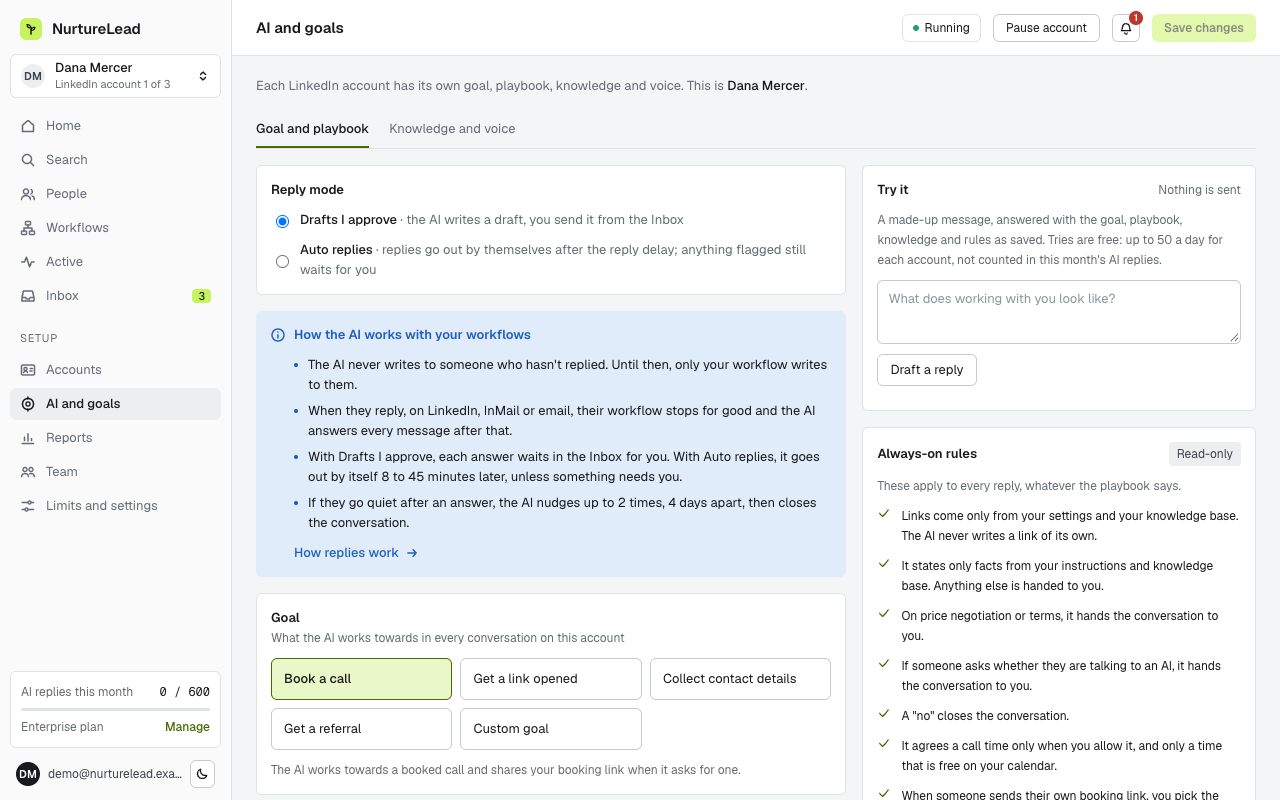
You choose what counts as a result for each LinkedIn account: book a call, get a link opened, collect contact details, get a referral, or a goal written in your own words. You also choose how a goal counts as reached: when the AI judges it, when you mark it, when a tracked link is opened, or when a booked call shows up in your calendar. The AI keeps running notes on each conversation, so you can see at a glance how close it is.
What it knows
The knowledge base holds what the AI may say about your business: offers, prices, answers to common questions, links and documents. You can type entries, bring them in from a page of your website, or upload a PDF, Word, PowerPoint, spreadsheet or text file. Up to 200 entries fit, and you can add instructions of your own for anything that does not fit an entry.
How it writes
Voice samples teach the AI how you write. Paste up to 20 messages, or pick them from messages you have already sent, and the replies follow your length, your greeting and your sign-off. A playbook sets the order of the conversation in up to eight stages, for example: open, qualify, handle objections, ask for the call.
Drafts or automatic
On every plan, the AI can write drafts that wait in your inbox until you approve them. Each draft comes with a short note on why it was written, so you can approve it in seconds. On Pro, Team and Enterprise you can let replies go out on their own. They are sent after a delay you set, inside your working hours, so answers never arrive at three in the morning. Anything the AI flags still waits for you.
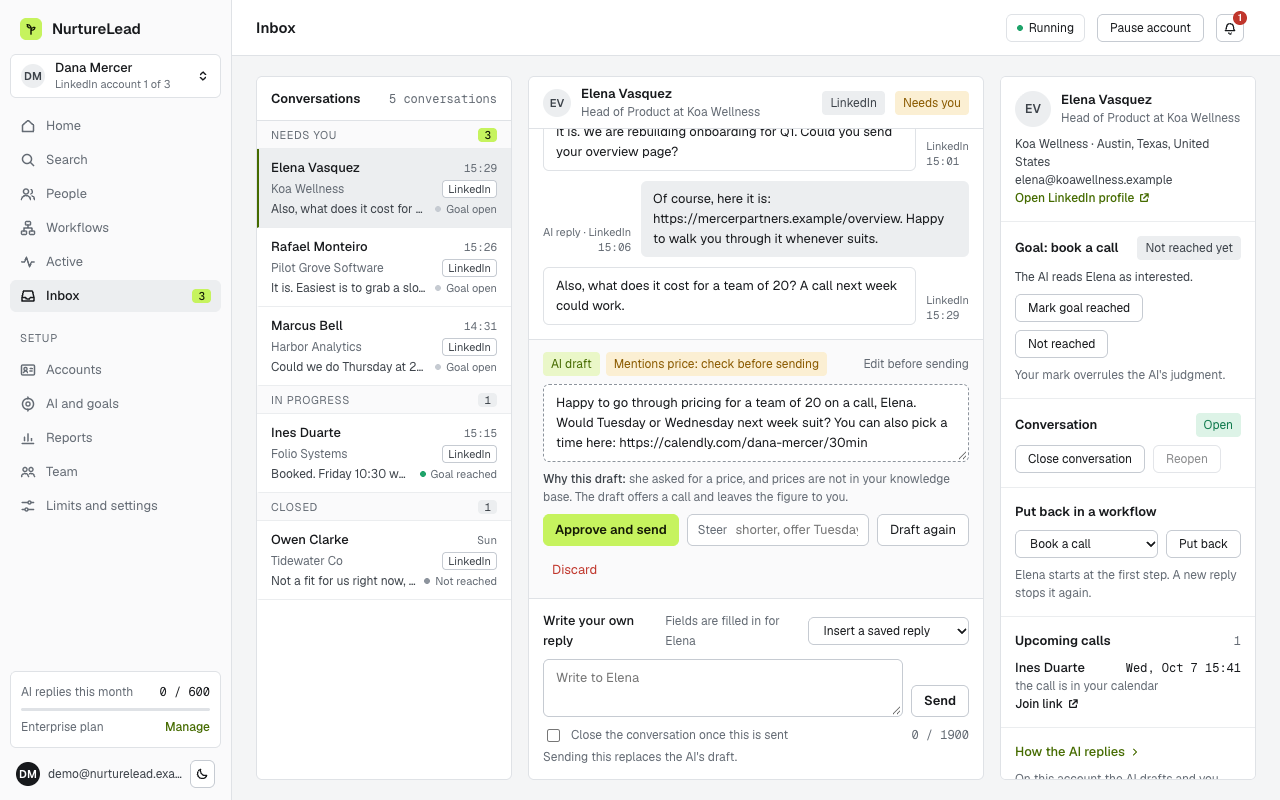
When they go quiet
If someone stops replying, the AI follows up: by default after four quiet days, twice at most, and then it closes the conversation. You can change the gap and the number of follow-ups in the account's settings, down to none.
Booking the call into your calendar
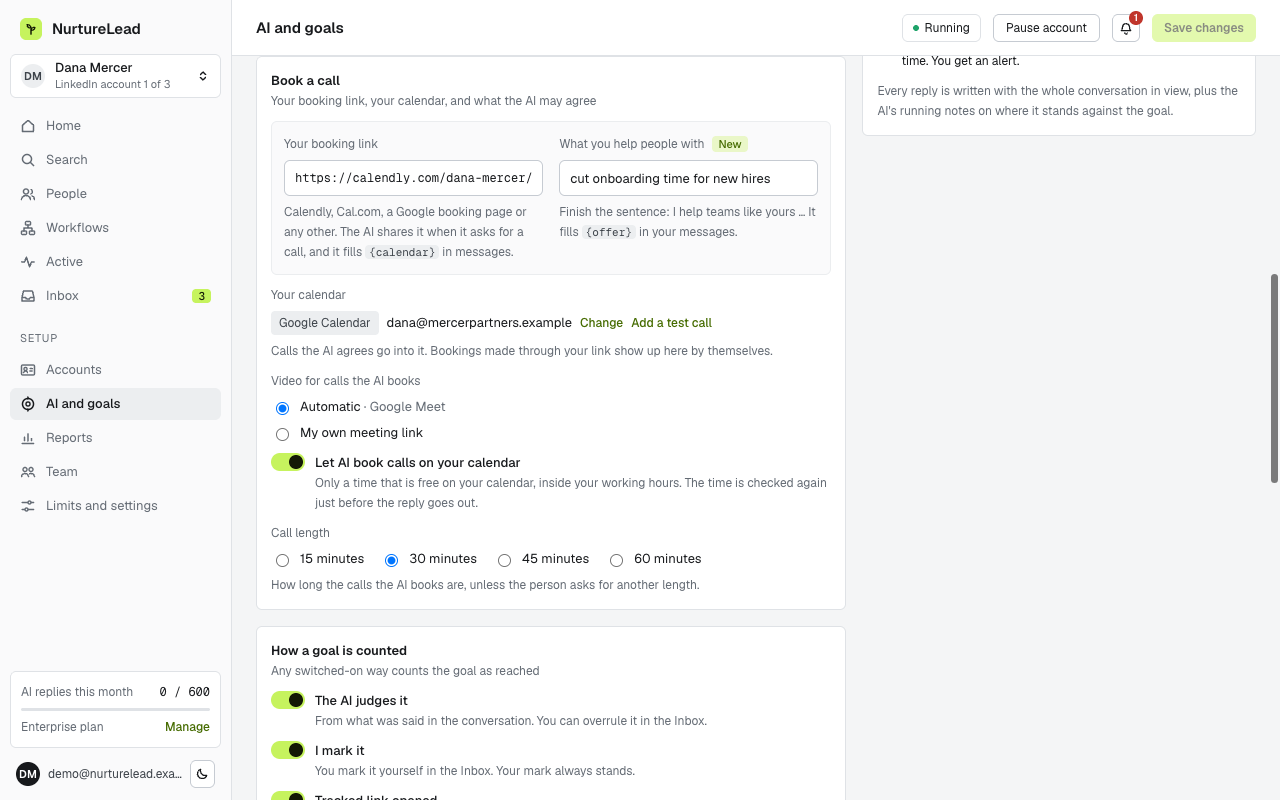
Connect Google Calendar or Outlook to an account and switch on "Let AI book calls on your calendar". From then on, when a conversation reaches the point of a call, the AI does the rest.
- It reads when you are free. It looks at the calendars you chose over the next ten days, inside your working hours and at least two hours ahead.
- It offers times in the conversation. No booking page to open: the reply simply suggests times that are free. If they propose a time themselves, the AI agrees only if it is free.
- It checks again before sending. Calendars change. Just before the reply goes out, the time is checked again. If it has been taken, the AI offers other free times instead, so you are never double-booked.
- It books the call. When they agree, the call goes into your calendar with a Google Meet link (Google Calendar) or a Microsoft Teams link (Outlook with Microsoft 365), or your own meeting link, and they get an invite from your calendar. If the AI does not have their email address yet, it asks for it in the conversation.
Calls last 15, 30, 45 or 60 minutes, as you choose. If you prefer to send your own booking page, you can: Calendly and Cal.com links are filled in with the person's name and email, and calls booked that way are found in your calendar and matched to the conversation.
What the AI will not do
Clear rules matter more than clever writing. NurtureLead's AI works inside these, on every reply:
- Only your facts. Facts come from your knowledge base and instructions, and prices only exactly as you wrote them.
- No haggling. Talk about price, discounts or terms comes to you.
- No pretending. If someone asks whether they are talking to AI, the conversation comes to you.
- No pushing past a no. A clear no ends the conversation.
- Only your links. The AI shares links you gave it, and nothing else.
- Short answers. Replies are one to four sentences, the way people write on LinkedIn.
When a question is not covered by what you gave it, the AI hands the conversation to you instead of guessing.
Drafts or automatic: which to choose
Start with drafts. For the first week, read every draft and approve it, edit it or discard it. You will learn quickly where your knowledge base has gaps, and each gap you fill makes the next answer better. The Try it panel in AI and goals lets you test answers to messages you type yourself, up to 50 a day for each account, and those tries do not use your monthly AI replies.
Once the drafts are ones you would send without changes, switch on automatic replies for that account. Keep a delay of at least a few minutes, so answers read like a person's, and keep your working hours realistic.
Starter includes 100 AI replies per account a month, Pro 350, Team 500 and Enterprise 600. If a busy month needs more, top-up packs for one account are on the Billing page.
Where AI replies fit in a workflow
Your workflow does the reaching out: a profile visit, an invite with or without a note, a message when they accept, follow-ups, and InMail or email steps if you use them. The AI does the talking once someone answers. The two never compete for the same person.
- A reply ends the workflow for that person. Whatever was queued for them is cancelled, so they never get a scheduled follow-up after they have already answered.
- Reaching the goal ends it too. When a call is booked, a tracked link is opened or you mark the goal as reached, that person leaves the workflow.
- You can step in at any time. A message you type yourself on LinkedIn cancels any AI reply waiting for that person, and their next message goes to the AI as usual.
- Some replies need nothing more. For a "thanks, will read it later", you can put the person back into a workflow from the inbox, and any AI reply already waiting for them is cleared first.
All of this happens across every LinkedIn account you run. Replies from all of them land in one central inbox, and each draft comes with the reason it was written. See what happens when someone replies.
How to tell whether it is working
AI replies are easy to judge, because the result is concrete: calls in the calendar, links opened, details collected. Three things tell you most of what you need.
- Goals reached against replies. Reports show the reply rate and the goals reached, by week and by workflow. If many people reply but few reach the goal, read the conversations that stalled: the gap is usually in the knowledge base or the playbook, not in the writing.
- Drafts that wait. If drafts sit in the inbox for hours before you approve them, conversations cool while they wait. That is the moment to switch on automatic replies for that account.
- Handovers. Conversations the AI hands to you wait in the inbox. A few are healthy. Many usually means a common question is missing from what you gave it.
Reports cover one account or all of them, for any range of dates, and export as spreadsheets on every plan. On Pro and up you can also send a PDF report or a live share link. See reports.
How other tools handle replies
Most LinkedIn automation tools stop at the reply. The table shows what each tool's own pages say about AI after someone answers, and whether that AI books the call into your calendar.
| Tool | AI replies | AI books calls |
|---|---|---|
| NurtureLead | Drafts on Starter, automatic on Pro and up | Yes, into your Google or Outlook calendar |
| Dripify | None listed | Not documented |
| HeyReach | None listed | Not documented |
| Expandi | Drafts you send | Not documented |
| lemlist | Drafts you send | Not documented |
| Skylead | Automatic or reviewed, a paid add-on | Not documented |
| Botdog | Drafts you send | Not documented |
| SalesRobot | Suggested or automatic | Shares your booking link |
| Valley | Drafts you approve | Not documented |
| Linked Helper | Suggested replies | Not documented |
The pattern is clear. Several tools write drafts you send yourself. Skylead, through a paid AI add-on, and SalesRobot can answer on their own, and both book by sharing your link. Among the tools here, NurtureLead alone documents AI that books the call into your Google or Outlook calendar itself. For prices across all of them, see our comparison of the best LinkedIn automation tools.
Set it up in an afternoon
- Choose the goal for each LinkedIn account in AI and goals. See choosing a goal.
- Fill the knowledge base with your offer, prices, common questions and links, or bring them in from your website. See knowledge base and voice samples.
- Add five to ten voice samples, picked from messages you have sent.
- Connect your calendar and switch on "Let AI book calls on your calendar". See booked calls and your calendar.
- Run Try it on the questions you hear most, and fix anything that reads wrong.
- Leave drafts on for a week, then decide about automatic replies. See drafts, auto replies and the rules that always apply.
Frequently asked questions
Can AI book meetings from LinkedIn conversations?
Yes. NurtureLead's AI offers times that are free on your Google or Outlook calendar, checks the time again before sending, and books the call with a Meet or Teams link when the other person agrees.
Will the replies sound like me?
They follow the voice samples you give it: up to 20 messages you wrote. The closer the samples are to how you really write on LinkedIn, the closer the replies will be.
What happens when someone asks something the AI does not know?
It hands the conversation to you instead of guessing, and the conversation waits in your inbox. Add the answer to your knowledge base and the next person gets it.
Can I check every reply before it is sent?
Yes. Drafts wait for your approval on every plan. Automatic replies are a choice on Pro, Team and Enterprise, and anything flagged still waits for you.
Which calendars does the AI book into?
Google Calendar, with a Google Meet link, and Outlook, with a Microsoft Teams link on Microsoft 365. You can also use your own meeting link.
How many AI replies are included?
From 100 to 600 per LinkedIn account a month, depending on the plan. Tries in the Try it panel are not counted.
See AI replies, booked calls and pricing for the details by plan.