How to automate LinkedIn outreach, from first invite to booked call
A step-by-step way to automate LinkedIn outreach: build the audience, plan the sequence, write messages that get replies, and book the calls.
Automating LinkedIn outreach is not about sending more. It is about sending the right message to the right person at a steady pace, and never letting a reply go cold. Done well, it gives you a calendar of conversations with people who asked to talk.
This guide walks through the whole thing in six steps, from choosing who to reach to booking the call, with message examples you can adapt. It uses NurtureLead for the screenshots, but the steps apply to any tool.
Before you automate LinkedIn outreach, decide the goal
Every choice that follows depends on what you want from a conversation. Pick one goal for each campaign.
- A booked call. The most common goal for founders, consultants and sales teams.
- An opened link. A case for content, a demo video, a proposal or an event page.
- Contact details. An email address or phone number, for a follow-up outside LinkedIn.
- A referral. An introduction to the right person in their company.
Write the goal down in one sentence, for example: "Book a 30-minute call with heads of growth at B2B software companies in the UK." That sentence tells you who to find, what to say and what counts as success. If you run outreach for a client, write it with them and agree on it before the first invite goes out. In NurtureLead you set it once per LinkedIn account, and both the reports and the AI work towards it. See choosing a goal.
Step 1: build the audience
The best messages fail when they reach the wrong people. Spend more time here than feels necessary.
- Search LinkedIn with tight filters. Job title, seniority, industry, company size and location. A narrow, well-defined audience beats a broad one, because you can write for it.
- Or paste a search you already have. If you have a LinkedIn search that works, paste its link and everyone it finds joins the audience.
- Choose how many people to collect. Start with a few hundred. You can always collect more from the same search later.
- Add people you already know about. Import a list from a spreadsheet, or add people one by one by their profile link.
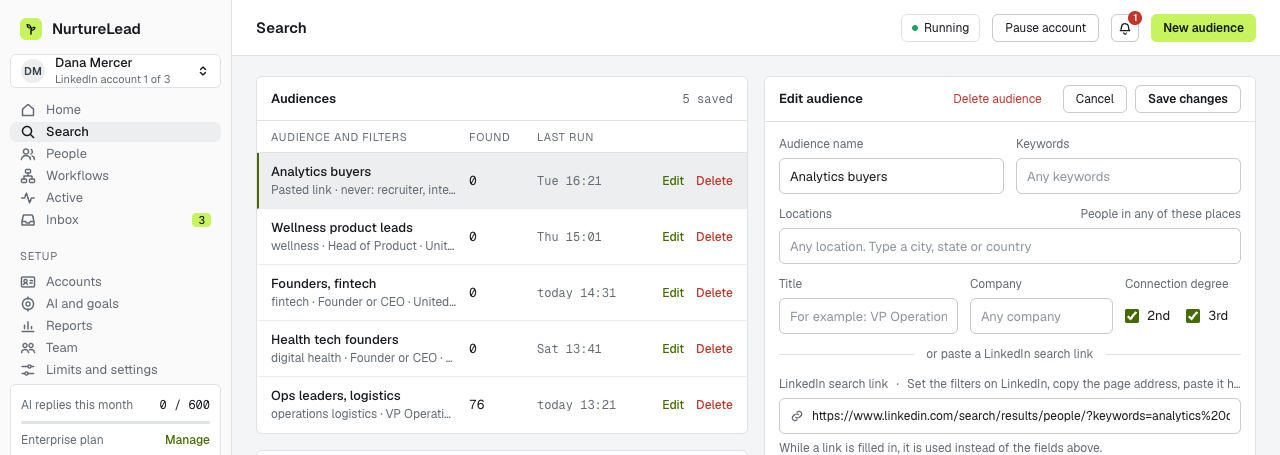
Keep each audience to one kind of person. "Heads of growth at software companies" and "agency owners" need different messages, so they belong in different audiences. See find people with a search or a pasted link.
Step 2: plan the sequence
A sequence is the order of steps each person goes through. Short sequences with real gaps between steps work better than long, busy ones.
A sequence that works for most goals:
- Visit their profile. They see you in their viewers list, which makes your name familiar before the invite.
- Send a connection request, with a short note or without one. Test both.
- Wait until they accept, for up to a week.
- Send a message that says why you connected and asks one question.
- Wait four or five days, then send a short follow-up if there is no reply.
- Wait another week, then a final, friendly message that leaves the door open.
Two branches make this better. If they do not accept within the week, send an InMail if their profile is open, or an email if you have their address, instead of waiting forever. And if they accept, skip anything meant for people who did not. In NurtureLead this is the "Accepted?" step, which sends people down a Yes path and a No path. See branching on whether someone accepted.
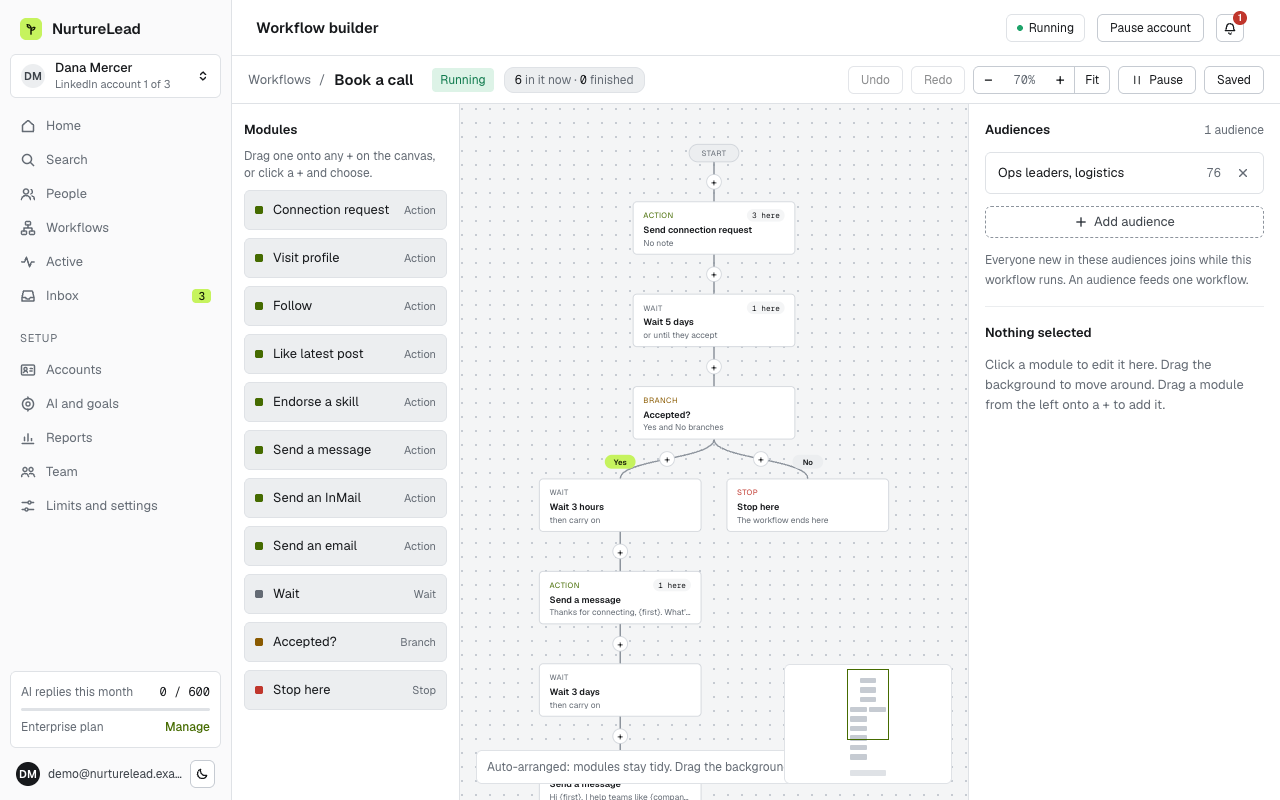
You do not need a step that checks for replies. The moment someone answers, by LinkedIn message, InMail or email, their workflow stops for them and the conversation moves to the inbox. See step types and what each one does.
Step 3: write messages that get replies
Most outreach messages fail for the same reasons: they are long, they talk about the sender, and they ask for too much. A message that gets replies is short, specific to the person, and ends with one easy question.
The connection note. Say why you want to connect, in one line.
"Hi {first}, I work with growth teams at software companies like {company} and would like to connect."
The first message after they accept. Thank them, say one useful thing, and ask one question.
"Thanks for connecting, {first}. I help teams like {company} {offer}. Is that something you are working on this quarter?"
The follow-up. Shorter than the first message, and easy to answer.
"Hi {first}, just checking this landed. Would a short call next week be useful, or is the timing wrong?"
The last message. Close the loop politely.
"No problem if now is not the right time, {first}. If it comes up later, I am easy to find here."
The fields in curly brackets are filled in for each person: {first} and {company} from their profile, and {offer} from one line you write once about what you help people with. If a field has nothing to fill it for someone, NurtureLead holds that person's message rather than sending a gap, and tells you which field is missing.
A few rules for every message:
- One idea, one question. If a message has two questions, people answer neither.
- Write for one person. Read it as the person it goes to. Would you answer it?
- No pitch in the note. The connection note earns the connection. The selling comes later, in a conversation.
- Keep links for later. A link in the first message reads like marketing. Share it once they reply.
Step 4: answer every reply quickly
The reply is where results are made, and where most automated outreach falls down. People answer at all hours, with questions the sequence did not plan for. A reply answered within the hour keeps the conversation warm; a reply answered tomorrow often does not.
There are two ways to keep up.
- Clear the inbox yourself, twice a day. It works for one account and a modest audience. Use saved replies for the questions you hear most.
- Let AI answer for you. NurtureLead's AI writes each reply towards your goal, from the facts in your knowledge base and in the voice of messages you wrote. Approve drafts at first, then let replies go out on their own once you trust them. Anything it should not answer, such as price negotiation, comes to you.
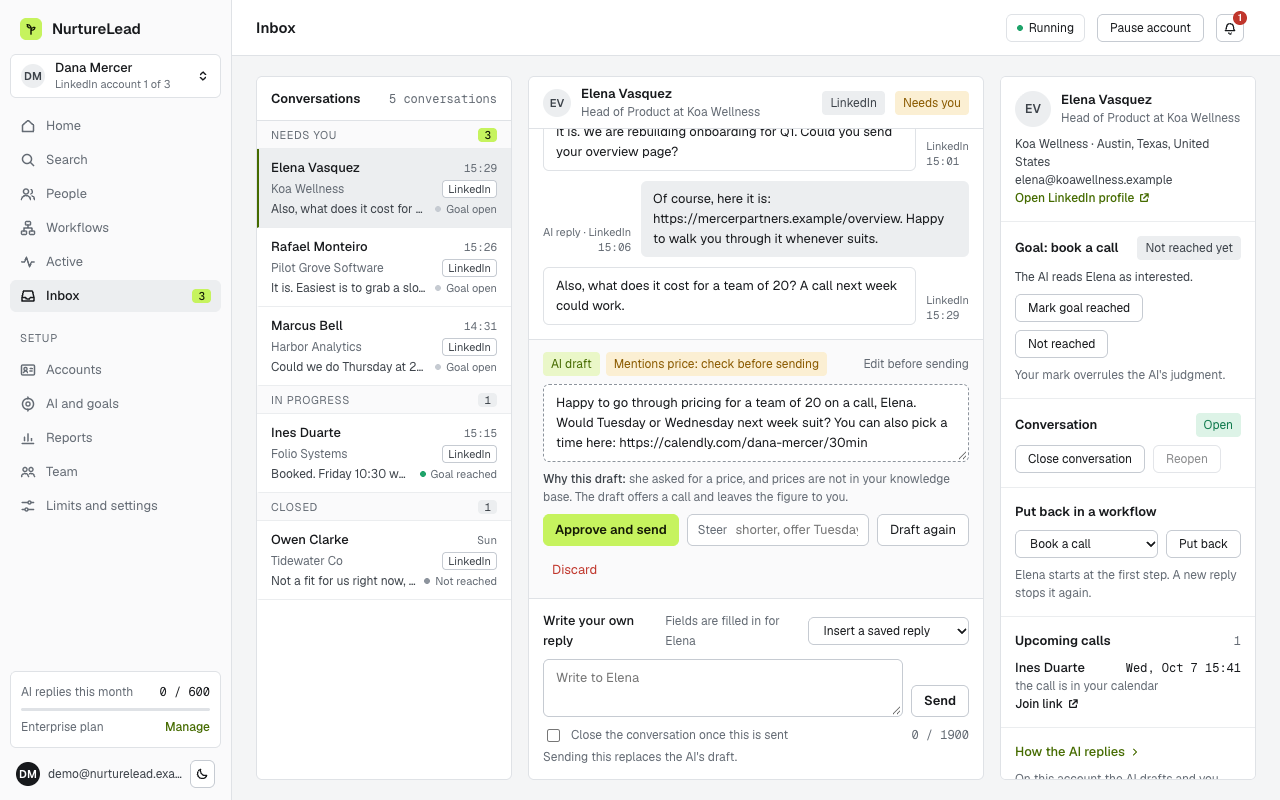
For more on how the AI works and what to check, read AI for LinkedIn outreach that books calls on your calendar.
Step 5: book the call
When someone says yes, the fastest way to lose them is a booking link they have to open, read and fill in. Offer times in the conversation instead: "I am free Tuesday at 10:00 or Wednesday at 14:30. Which suits you?" One word from them, and you are done.
NurtureLead can do this for you. Connect Google Calendar or Outlook, switch on "Let AI book calls on your calendar", and the AI offers only times that are free, checks the time again just before sending, and adds the call to your calendar with a Meet or Teams link and an invite for them. If you prefer to share your own booking page, the {calendar} field puts your link into any message. See booked calls and your calendar.
Step 6: measure and improve
Four figures tell you where a campaign is working and where it is not. Look at them by workflow, not only in total, so you can compare one sequence with another.
- Invites sent. Is the workflow running at a steady pace?
- Acceptance rate. If it is low, the audience or the note is off. Try a tighter audience, or a note that is more specific to them, or no note at all.
- Reply rate. If people accept but do not answer, the first message is the problem. Make it shorter, more about them, and end with a question.
- Goals reached. If people reply but few reach the goal, look at how replies are answered and how quickly.
Change one thing at a time, and give each change a couple of weeks before you judge it. Reports show all four figures by week and by workflow, for any range of dates, and you can export them or share them. See reports.
A week in the life of a campaign
Once a workflow is running, the work changes shape. Instead of writing messages, you spend a few minutes a day on the people who answered. A typical week looks like this.
- Monday. Look at the week before: invites sent, acceptances and replies for each workflow. Collect more people into any audience that is running low.
- Every morning. Clear the inbox, or approve the AI's drafts if you use them. Note any question you had to answer by hand, and add the answer to your knowledge base so it is covered next time.
- Midweek. Read a few conversations that went quiet after the first message. If several stalled at the same point, change that message.
- Friday. Check the calendar for the calls that were booked, and make sure each one has the context you need: who they are, what they asked, and what they want from the call.
Running outreach for more than one LinkedIn account
The same steps work for a team. Give each person's LinkedIn account its own audience and its own workflow, so two colleagues never write to the same prospect, and let each account keep its own goal and voice. In NurtureLead, Pro includes three LinkedIn accounts, Team five with five logins, and Enterprise ten, and replies from all of them arrive in one central inbox. Each account's AI answers in that person's voice, from the same knowledge base or from its own. See running several LinkedIn accounts.
Mistakes to avoid
- One giant audience. Split it by role and industry, and write for each.
- Long first messages. If it does not fit on a phone screen without scrolling, it is too long.
- Too many follow-ups. Two or three is plenty. After that, you are teaching people to ignore you.
- Slow replies. The most expensive mistake. Every hour a reply waits lowers the chance of a call.
- Links in the first message. Earn the click with a conversation first.
- Changing everything at once. Then you cannot tell what worked.
Frequently asked questions
How do I automate LinkedIn outreach?
Build a narrow audience, set up a short sequence of a profile visit, an invite, a message and one or two follow-ups, and make sure every reply is answered quickly. A tool such as NurtureLead runs the sequence for you and can answer replies with AI.
Can I automate LinkedIn messages?
Yes. Messages can be sent automatically once someone accepts your connection request, with fields such as their first name and company filled in for each person. Replies are best answered by a person or by AI that works from your own facts.
Should I add a note to connection requests?
Test both. A short, specific note helps with some audiences, and no note works better with others. Measure the acceptance rate for each and keep the winner.
What should a LinkedIn connection note say?
One line on why you want to connect, specific to them: their role, their company or something they posted. Leave out the pitch and the link. The note's only job is to earn the connection, so the conversation can start once they accept.
Can I combine LinkedIn with email?
Yes. A workflow can send an email from your own Gmail or Outlook mailbox, for example to people who have not accepted your invite after a week. See email steps and connecting Gmail or Outlook.
How long before I see results?
Most sequences take two to three weeks to run their course for the first group of people, because of the waits between steps. Judge a workflow after that, not after the first few days.
Ready to set up your first workflow? Start a free trial and follow build your first workflow.